Reports: sessions, setups and picture comparisons
Does Magpie make a game look better? Does it cost FPS? The Reports tab answers that with numbers, per game. While a game runs, the app records how it ran once a second; afterwards you can look at each session, compare the setups you played with, and compare pictures.
A setup is what showed the game's picture and at what sizes, for example
Magpie FSR 1600 × 900 → 1920 × 1080, Downscaled view 3840 × 2160 → 1920 × 1080 or No scaler 1920 × 1080.
Moments in between (Magpie starting, paused because another window was in front, not scaling) are
recorded too, in grey, but they are not setups to compare.
The tab
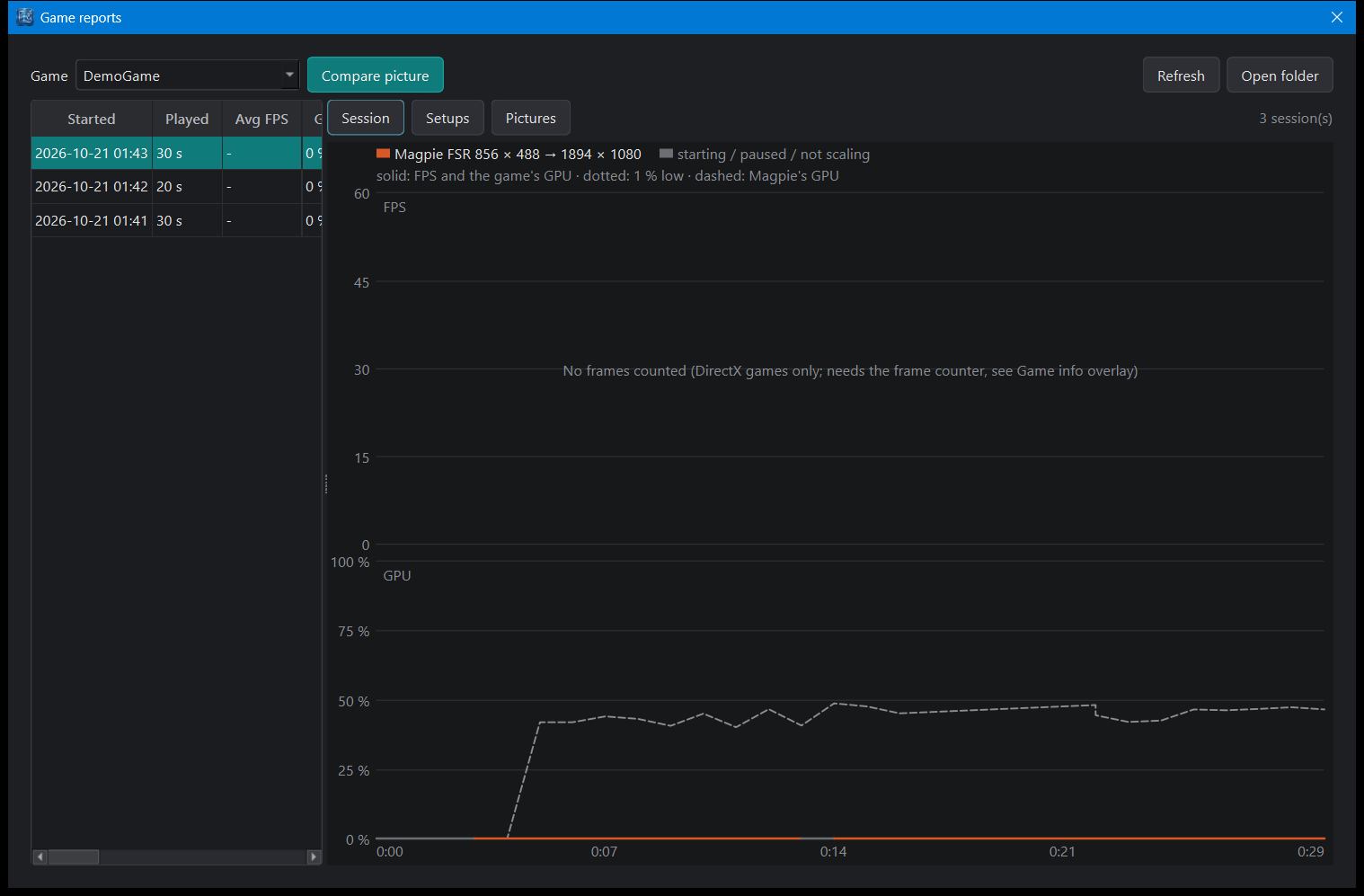
- Game: the games with recorded sessions.
- Left: the sessions, newest first (start, time played, average FPS and GPU, the setups used). Pick one to see it over time.
- Session: the picked session over time. Above, the FPS (solid) and the 1 % low (dotted); below, the game's GPU % (solid) and Magpie's own GPU % (dashed). The line takes the colour of the setup at that moment. Hover for the values at that second.
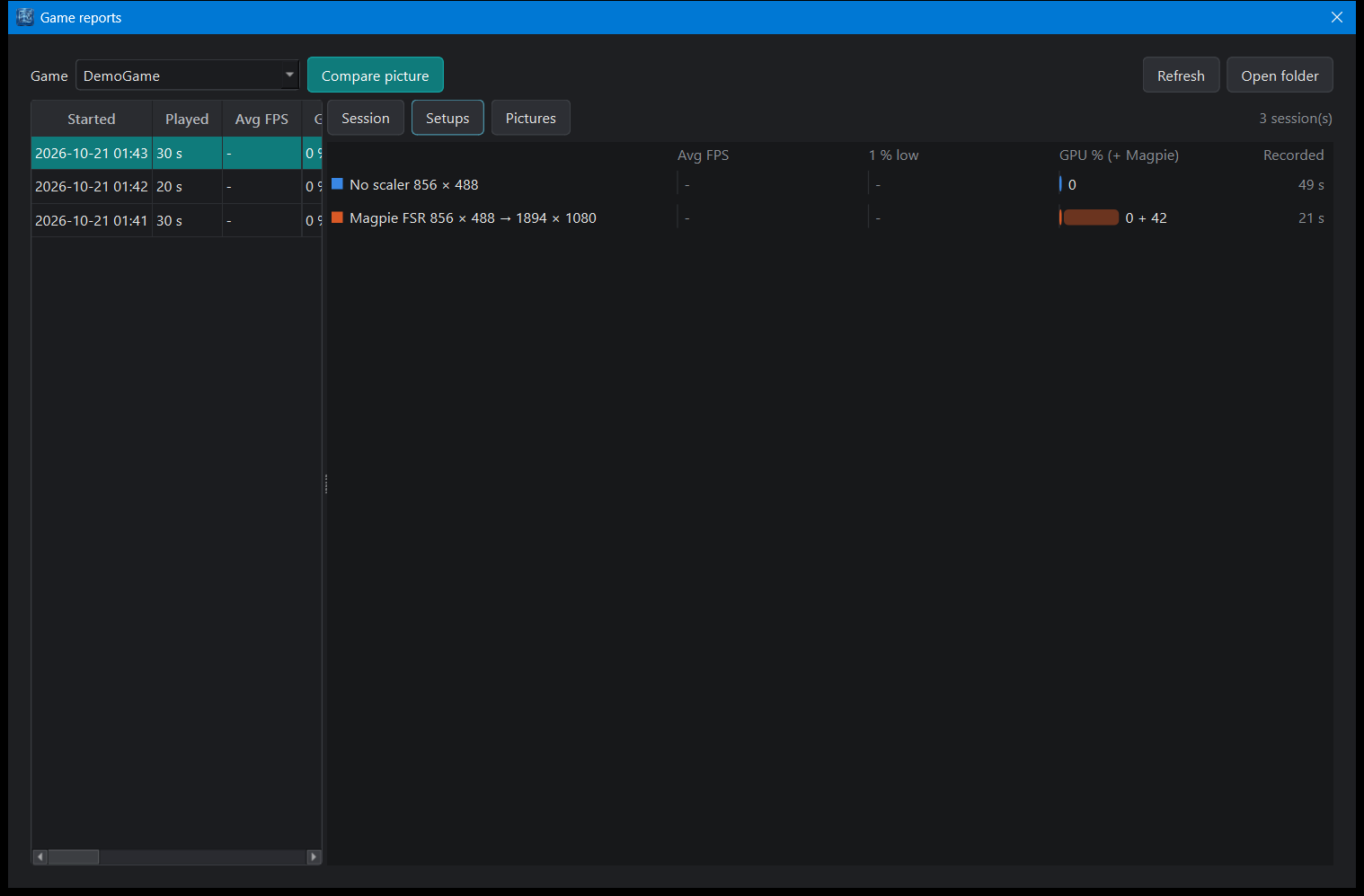
- Setups: the game's setups over all its sessions, one row each: average FPS, 1 % low, GPU (the game's
plus Magpie's, written as
29 + 6) and how long it was recorded. A setup keeps its colour in every view. - Pictures: the picture comparisons (below).
- Larger view opens the same in a window of its own; Open folder shows the files.
Sessions shorter than 10 seconds are not kept. Seconds without a game window (loading, closing) are left out.
Picture comparison
Is Magpie's upscaling sharper than a plain stretch? To measure it:
- Start the game with Magpie (Magpie tab) and let it scale. The overlay shows
Magpie FSR: ... upscaling. - Put the game on a still screen: pause, a menu, character select.
- Reports tab > Compare picture. The game gets the focus (Magpie only draws live frames while it is in
front), and 2 seconds later the app captures, at the same moment:
- the game's own frame at its own size (for example 1600 × 900);
- what Magpie shows on the monitor (1920 × 1080).
- The game's frame is also stretched to the monitor size with a plain bilinear filter: what you would get without Magpie (Windows or the monitor stretching the picture).
All three get a sharpness score: the strength of the edges in the picture (the RMS of the brightness gradient, "Tenengrad"). A blurred edge scores lower than a crisp one. The verdict compares Magpie with the bilinear stretch: Magpie FSR is 15.5 % sharper than a plain stretch. The game's own frame scores highest, because it has the fewest pixels per edge; it is there for reference.
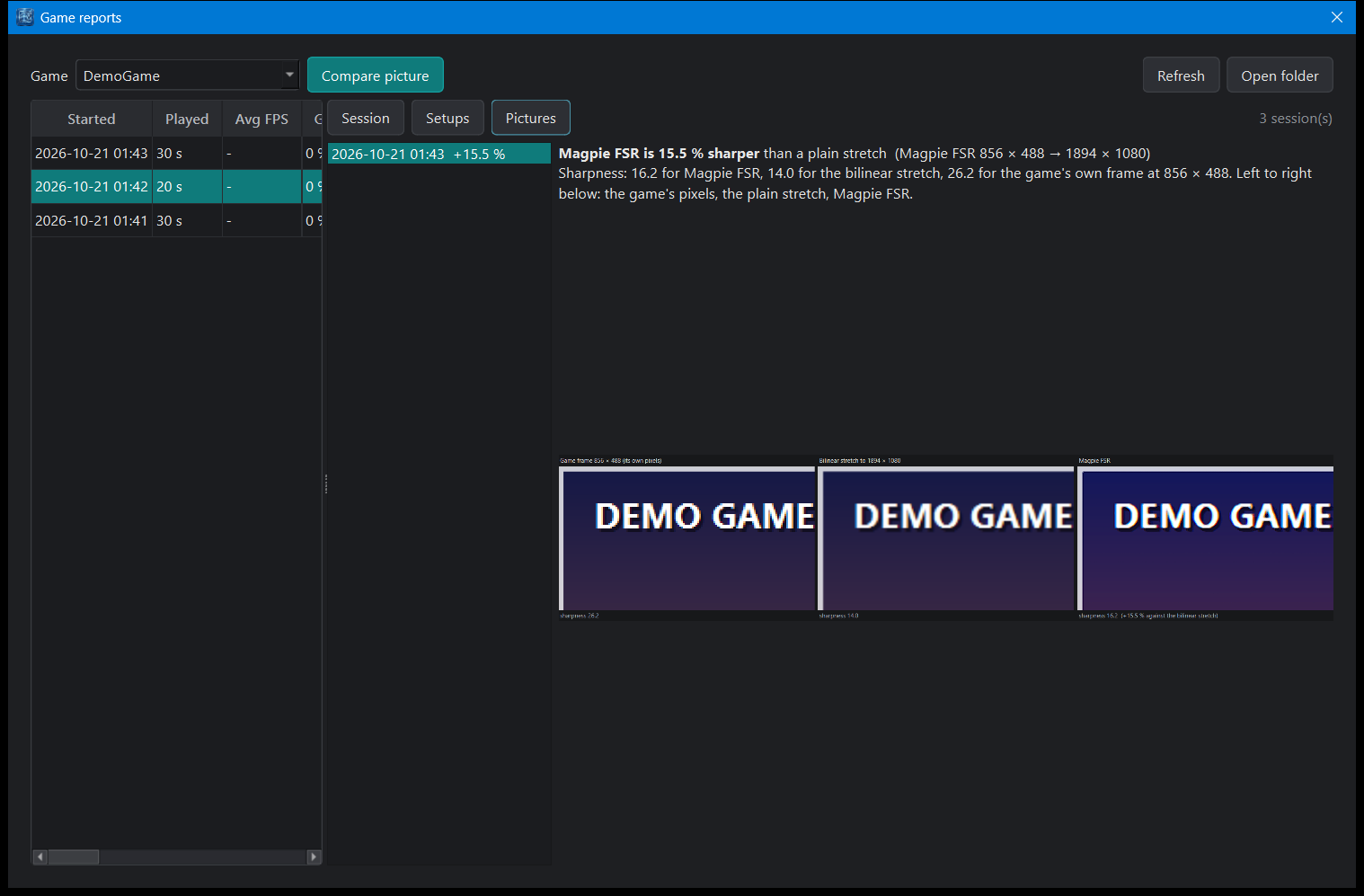
The side-by-side zoom shows the same part of the picture (where it has the most detail) three times, enlarged 2x with no smoothing: the game's pixels, the bilinear stretch, Magpie. Double-click the entry in the list to open the full image. The full-size shots are in the folder too.
Sharper is not always better: very strong sharpening can add halos. Look at the zoom as well as the number. The two shots are a frame or two apart, so a moving picture gives a less fair score.
Is upscaling worth it?
Compare a session without Magpie (native resolution) with one with Magpie on the Setups view:
- The same FPS with a lower GPU % for the game: rendering smaller saves work. Add Magpie's share
(
29 + 6) to see the total. - The same FPS and the same GPU %: the game was not limited by the GPU (for example a game capped at 60 FPS with the GPU at 30 %). Upscaling then gains nothing; a higher render scale (Game config tab) uses the spare GPU power for a sharper picture instead.
- Higher FPS with Magpie: the game was GPU-bound and upscaling helps.
Files
Everything is in reports/ next to the program, one folder per game:
| File | What it holds |
|---|---|
<start>-samples.csv |
One row a second: time, FPS, 1 % low, CPU, GPU, Magpie's GPU, RAM, VRAM (MB), setup, scale %, on battery. Written while the game runs, so a crash keeps it. |
<start>.json |
The session's summary (schemaVersion 1): game, exe name, Steam AppID, start / end, app version, GPU, monitor, warnings, and per setup the averages and peaks. |
compare-<time>.json, .png |
A picture comparison: sizes, the three sharpness scores, the gain, and the side-by-side image; -game.png, -bilinear.png, -scaled.png are the full shots. |
reports/sessions.csv |
One row per session of every game: for a spreadsheet. |
No private data is stored: the game's name and exe file name only, no user names, folders, PC name or serial numbers.