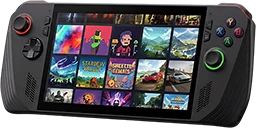
Remote Play
Plays your PS4 and PS5 on the handheld over your home network: it finds the consoles, registers the handheld with them, wakes them from rest mode and streams them full screen, with the handheld's controls as the console's controller. It is the BC250 Bazzite Suite's Console Link made for the handheld, with the same protocol code. The picture is decoded by the handheld's graphics chip where it has a video decoder (the ROG XBOX Ally X's has).
Remote Play is on the portal's Gaming tab: A on its tile installs it, and once it is installed, A opens it. It is also in the Start menu (Windows Portable Suite, Remote Play). It opens full screen; B goes back and ⧉ (View) exits it.
What you need
- Remote Play on the console: Settings > System > Remote Play > Enable Remote Play.
- To wake it from rest mode: on a PS5, Settings > System > Power Saving > Features Available in Rest Mode: switch on Stay Connected to the Internet and Enable Turning On PS5 from Network. A PS4 has the same two switches under Settings > Power Saving Settings > Set Features Available in Rest Mode.
- The same network: the handheld and the console in one local network. Remote Play over the internet is not part of this app. A cable to the console and a good Wi-Fi for the handheld make the smoothest stream.
- Your PSN account ID: the number of your PlayStation Network account, not your online name. PlayStation does
not show it anywhere; the sign-in on the Register card reads it (see below). The app also takes the number itself
(for example
4782394583276428394) or the 12-character code that ends with=, as other Remote Play apps show it. It is the same for every console you register with this account.
The first search may make Windows ask whether Remote Play may use the network: allow it for private networks, the kind your home network is.
The screen
Five cards on the left, Consoles, Register, My consoles, History and Settings; the right side shows what the focused card does. The d-pad or the left stick moves the amber focus. Every action is a button, listed in the row at the bottom with what it does where the focus is: A included. Press the button, or tap the entry. B goes back, from a list to its card. ☰ (Menu) opens the information of the pane that shows; the information icon at a pane's top right does the same by touch. Nothing is grayed out: when a button cannot do its job now, pressing it says why on the pane's status line. Nothing searches before you press X.
Consoles
The consoles that answered the search, each with its name, model, address, state (On or Rest mode) and whether the handheld is registered with it.
- X Search the network asks every PS4 and PS5 on the network. A console that is on, or in rest mode with Remote Play on, answers within two seconds.
- A Change on the Search an address row opens a page with its field, for a console the search does not find (in another part of the network). The console shows its address under Settings > Network, View Connection Status. Y Search the address asks that address only; the consoles found before stay on the list.
- A Register on a console chooses it on the Register card. A My consoles on a console the handheld is registered with goes to it there.
When a registered console answers at another address (the router gave it a new one), the app keeps the new one.
Register
Registering lets the handheld wake the console and play it, as the PSN account it is registered for. A row per thing it needs:
- Console: the console chosen on the Consoles card; A Next console steps through the ones found that the handheld is not registered with yet.
- Account ID from the PlayStation sign-in: A Sign in opens the official PlayStation sign-in in your browser. Sign in with the PSN account you use on the console. The sign-in then shows a page that only says "redirect": copy that page's address from the browser's address bar, and the app takes it from there by itself. It sends the code in that address to PSN once, keeps only the account ID, and fills it in. The code works for a few minutes. Go back to the app (it may already show the account ID).
- Account ID: A Change opens a page with its field, to type the ID or paste it.
- PIN: on a PS5, open Settings > System > Remote Play > Link Device; on a PS4, Settings > Remote Play Connection Settings > Add Device. The console shows an 8-digit PIN for a few minutes. A Change opens the page to type it.
On a field's page, R3 (the right stick pressed) opens Windows' touch keyboard, or closes it; X Paste puts in what you copied on the handheld. A Keep keeps it, B goes back without.
X Register registers the handheld with the console while the console shows the PIN. The PIN is used once and never saved; the console then lists the handheld under Link Device (PS5) or Add Device (PS4).
My consoles
The consoles the handheld is registered with, each with its name, model, its state at the last search and whether it is in Steam. The line under the heading tells more about the console the focus is on: its model (a PS4 Pro shows as one after a session), a PS4's system software, what runs on it, and its Remote Play version.
- A Play plays the console: it wakes the console when it rests (about 20 seconds; a console that answers at another address is found by a search), then streams it full screen. The screen says what happens until the picture comes.
- X Its page opens the console's page.
Playing
The handheld's controls are the console's controller: the buttons, the sticks and the triggers, and the guide button is the PS button. A DualShock 4 or DualSense connected to the handheld (by cable, or paired over Bluetooth with the handheld, not with the console) works too, with its touchpad and motion; the console's rumble and light bar go to it.
To end the stream, hold View, LB and RB together for two seconds, as in the suite's game managers, or touch the screen and hold it for two seconds. The console keeps running; the app shows how the stream went. When the console ends the stream itself, or the network breaks off, the app comes back by itself.
The console's page
A acts on the row the focus is on; B goes back to My consoles.
| Row | What A does |
|---|---|
| Wake from rest mode | Turns the console on from rest mode. A search then shows it as On. |
| Test session | Starts a session and closes it again after three seconds: it proves the registration and the connection. |
| Test stream | Also runs the stream for five seconds, without showing it: it proves the network and the decoding. |
| Resolution | Automatic (1080p from a PS5 or a PS4 Pro, 720p from a PS4), 360p, 540p, 720p or 1080p. A PS4 that is not a Pro streams 720p at most. |
| Frame rate | 60 or 30 fps. |
| Bitrate | Automatic (15 Mbit/s at 1080p, 10 at 720p), or 5 to 50 Mbit/s. Lower it when the picture stutters on Wi-Fi. |
| Picture | Fit: the whole picture, black bars where the shape differs; Stretch: the whole screen, the picture distorted to fill it; Fill: the whole screen, the picture's edges cut off. |
| Sound later by | 0 to 500 ms: the sound waits for a picture that comes late. |
| Low latency | A shorter sound buffer and the decoder's low-delay mode: less lag, maybe a gap in the sound. |
| Login passcode | When the PSN account on the console has a 4-digit login passcode, the console asks for it when a session starts. Type it on the page that opens; leave the field empty to remove it. |
| In Steam | Adds the console to Steam's library as a game of its own, "Living room PS5 (Remote Play)", with pictures drawn from the app's icon: started from Steam (its full-screen mode too) it wakes the console when needed and streams it, without the app's window. Steam closes for it and starts again. When it is there, A brings it up to date and Y takes it out, on a second press. |
| Rest mode | Puts the console in rest mode through a short session, on a second press within five seconds: a game on it stops. |
| Remove this console | Forgets the console, on a second press within five seconds; its Steam entry goes too. To use it again, register again. A PS5 still lists the handheld under Link Device: remove it there too. |
The stream's settings count from the next stream; they are the console's own, so its Steam entry streams with them too.
History
The games played through the app and how long, newest first: the game, the console, the time and when it was last played. The app asks the console what it runs every 30 seconds while it streams (from Steam too); play on the console itself is not seen. X Clear forgets it all, on a second press within five seconds.
Settings
A changes a setting.
| Setting | Default | What it does |
|---|---|---|
| Personal details | Hidden | Your PSN account ID, your online ID and the consoles' addresses, masked on the screen: the account ID shows only its last four characters, an address only its last part (•••.•••.•••.20), the online ID nothing at all. Shown shows them in full. |
The last row, The app's log, shows the log in the pane: the d-pad scrolls it, B goes back. The log always masks the personal details, whatever the setting.
Privacy
What the app sends, and to whom:
- To your consoles, on your own network: the account ID once, when you register; after that the keys from registration, to wake the console and start a session, and the stream itself (your controller's input and nothing else). During a stream the app also asks the console what it runs, for the history; that answer stays on the handheld.
- To PlayStation (PSN), only with the sign-in: the one-time code from the sign-in, once, to read your account ID and online ID. The sign-in itself happens in your browser; the app never sees your password.
- Nobody else. The app has no statistics, no crash reports and no connection to anything but your consoles and, on that one row, PSN.
The consoles' names (PS4-728, Living room PS5) are not masked: check them before you share a log or a stream's statistics if you gave a console your own name. The online ID is not kept. In Steam writes the console's name into Steam's list of non-Steam games on the handheld; nothing of it leaves the handheld.
When it does not work
- The search finds nothing: check that Remote Play is on, and that the console is on or in rest mode with the two rest-mode switches on. Try Search an address with the console's address. When Windows asked whether the app may use the network and it was not allowed, allow it in Windows Security > Firewall & network protection > Allow an app through firewall.
- Registration: no answer: the PIN screen (Link Device on a PS5, Add Device on a PS4) must be open on the console while you register, and the PIN is only valid for a few minutes.
- The console was switched off completely: Play, Wake and the tests only reach a console that is on or in rest mode with the two rest-mode switches on (see What you need).
- Remote Play is already in use: another device has a session with the console. Close it there.
- The console asks for the login passcode: set it on the console's page, Login passcode.
- Test session works, but the stream does not start: the stream uses UDP ports 9296 and 9297 of the console; a firewall or a router between the two that blocks them stops it. Try Test stream on the console's page.
- The picture stutters: lower the bitrate or the resolution on the console's page, or bring the handheld closer
to the Wi-Fi. Each stream writes its statistics, a line per second, to the
streamsfolder (see Files); they show where it stuttered. - The controller does nothing in the stream: the log names each controller the stream found. A DualShock 4 or DualSense must be connected to the handheld, not to the console: pressing its PS button while it is paired with the console connects it there, and the console then ends Remote Play.
Install it on its own
The portal installs it. To install it on its own, download wp-rplay-v<x.y.z>.zip and SHA256SUMS from its release,
then in PowerShell, in that folder:
(Get-FileHash wp-rplay-v<x.y.z>.zip).Hash -eq (-split (Get-Content SHA256SUMS))[0]   # True: the download is intact
Expand-Archive wp-rplay-v<x.y.z>.zip . -Force
powershell -ExecutionPolicy Bypass -File wp-rplay-v<x.y.z>\install.ps1
Installed on its own, it gets a Start-menu entry and a Desktop shortcut. Afterwards the installer asks whether to remove the download.
| Option | |
|---|---|
--no-desktop-shortcut |
the Start-menu entry only |
--uninstall |
remove the app; the settings, the log, the registered consoles and the history stay |
--uninstall --purge |
also remove the settings, the log, the history and the registered consoles with their keys |
A console's Steam entry starts the installed program; take it out in the app before uninstalling, or remove it in Steam itself.
Files
| Where | What |
|---|---|
%LOCALAPPDATA%\windows-portable-suite\windows-portable-rplay\app\ |
The program, Remote-Play.exe |
%LOCALAPPDATA%\windows-portable-suite\windows-portable-rplay\consoles.json |
The registered consoles, their keys and their stream settings: with the keys anyone on your network could start a session as your account, so share it with nobody. Kept on this device only, not in the roaming %APPDATA% |
%LOCALAPPDATA%\windows-portable-suite\windows-portable-rplay\history.json |
The games played and their time |
%LOCALAPPDATA%\windows-portable-suite\windows-portable-rplay\streams\ |
Each stream's statistics, a line per second, the newest 20 |
%LOCALAPPDATA%\windows-portable-suite\windows-portable-rplay\windows-portable-rplay.log |
The log |
%APPDATA%\windows-portable-suite\windows-portable-rplay.ini |
The settings, the account ID and the address searched last |
License
AGPL-3.0. The protocol code is ported from chiaki-ng (AGPL-3.0-only with an OpenSSL exception), through Console Link; the README in the app's folder says which files. The release carries FFmpeg (LGPL-2.1-or-later), linked into the app's native core, and SDL 3 (Zlib); THIRD-PARTY-NOTICES.txt beside the program has their licenses.