App categories
Every app in the suite belongs to one of four categories, and every app in a category has the same icon. The icon tells you what kind of app it is: one that keeps the console running well, one for graphics in games, one for playing, or a utility.
Why categories
- You see at a glance what an app is for. In the portal, the menu, on the Desktop and in Steam, the icon shows its kind before you read the name.
- The suite looks like one suite. Many apps with as many styles would look like a pile of separate tools; four icons look like one family.
- One place to change them. Each category's icon is kept once, in
icons/<category>/. A new app picks a category and gets its icon; a new icon for a category reaches every app in it. How that works is in Development.
The categories are also the portal's categories: an app's tile is under its category's name.
Legend
| Icon | Category | What it stands for |
|---|---|---|
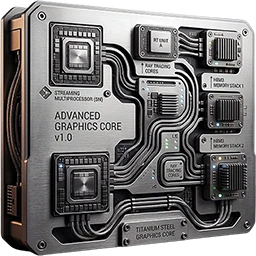 |
Sustainable | The console itself: test it, watch it and keep it cool, so it runs well for a long time. |
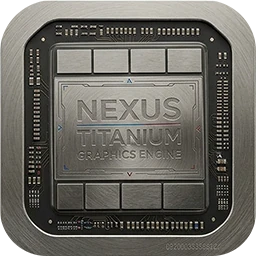 |
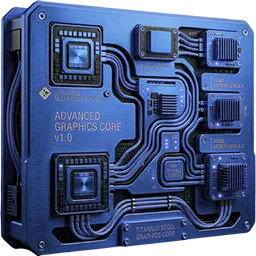
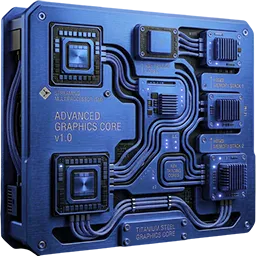
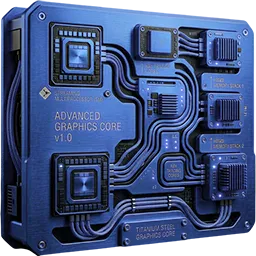
Graphics | Better pictures in games: an upscaler put into the games that can use one. |
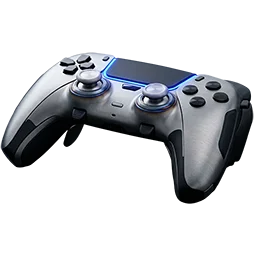 |
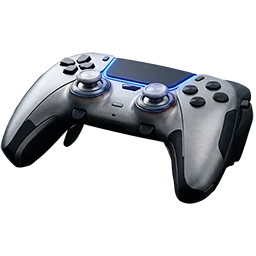
Gaming | Playing: emulators, Remote Play with your consoles, and PlayStation trivia. |
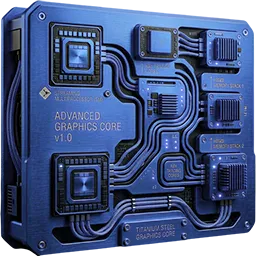 |
Utilities | Handy tools around the console: Bluetooth devices paired at boot, the controllers, a PlayStation camera as a webcam, the TV over HDMI-CEC, file transfer and the drives. |
Apps by category
Every app with its icon and its category.
| App | Category |
|---|---|
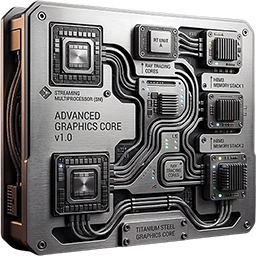 Bazzite Test |
Sustainable |
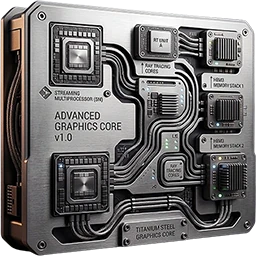 Fan Control |
Sustainable |
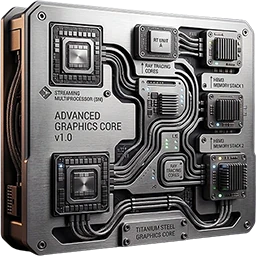 System Overlay |
Sustainable |
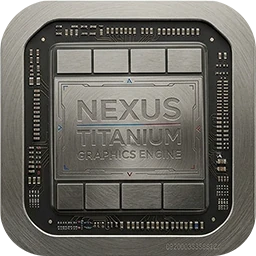 Upscaler Manager |
Graphics |
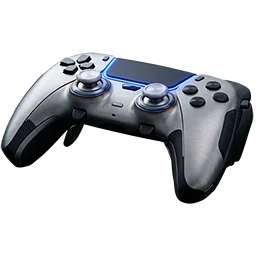 Bazzite DatStation |
Gaming |
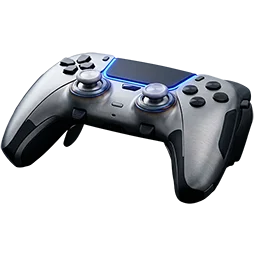 PCSX2 Manager |
Gaming |
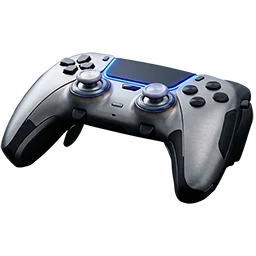 PPSSPP Manager |
Gaming |
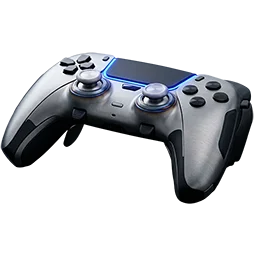 Remote Play |
Gaming |
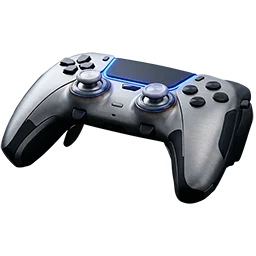 RPCS3 Manager |
Gaming |
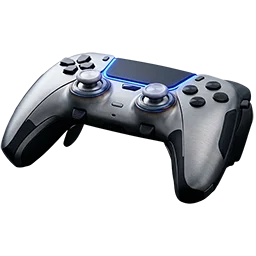 shadPS4 Manager |
Gaming |
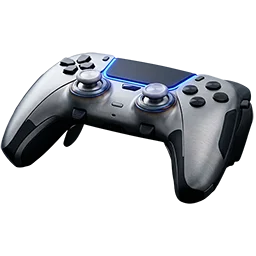 Vita3K Manager |
Gaming |
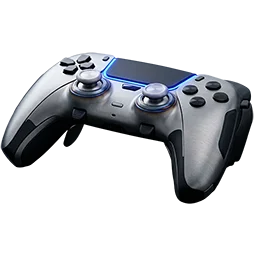 XBOX Remote Play |
Gaming |
 Xenia Manager |
Gaming |
 Bluetooth Pairing |
Utilities |
 Controller |
Utilities |
 HDMI CEC Manager |
Utilities |
 SFTP Tools |
Utilities |
 SSD Check |
Utilities |
 Webcam |
Utilities |