BC-250 XB Remote Play
BC-250 XB Remote Play brings XBOX games to the AMD BC-250. Sign in with your Microsoft account, and the app lists your XBOX consoles and the games of XBOX Cloud Gaming you may play. Stream your own XBOX to the board, or play a game from the cloud. Microsoft calls streaming your own XBOX Remote Play.
The app does not change how the board runs. It talks to Microsoft's XBOX services only when you sign in, refresh, wake a console or stream. When it starts signed in, it refreshes by itself.
What you need
- A Microsoft account with an XBOX profile. An account that never signed in to XBOX gets its profile by signing in once on xbox.com.
- For your own XBOX, remote play turned on. The app streams an XBOX One and an XBOX Series X|S. On the console, go to Settings > Devices & connections > Remote features and turn on Enable remote features. To wake the console from the board, set its power mode to Sleep under Settings > General > Power options. You cannot wake a console over the network when it is shut down. The console and the board need not be on the same network, but a stream at home is the steadiest.
- For XBOX Cloud Gaming, an account that may play. With Game Pass Ultimate you can play its cloud games. Without it, the app lists the games that are free to play in the cloud, such as Fortnite. XBOX Cloud Gaming is not open in every country.
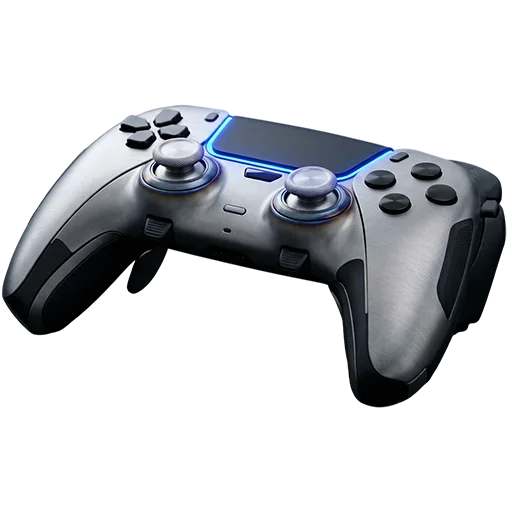
- A controller on the board. Connect it by USB cable, or pair it over Bluetooth with the board, not with the XBOX. Any controller the system knows will do, such as an XBOX controller, a DualSense or a Steam Deck's controls. An XBOX controller paired with the console connects to the console when you press its XBOX button. So pair it with the board. The keyboard works as a controller too, as The stream describes.
- A good connection. For the cloud, Microsoft advises at least 20 Mbit/s. A cable or 5 GHz Wi-Fi is best.
Using it
The boxes at the top show three things:
- Account, your gamertag
- Consoles, how many consoles the account has
- Cloud, which cloud games the account may play: Game Pass or Free to play
1 Microsoft account:
- Sign in: the app asks Microsoft for a code and shows it with the address microsoft.com/link. Open that address on a phone or any computer, enter the code and sign in there. The window goes on by itself once you are signed in. The code is valid for 15 minutes. Cancel stops waiting. You sign in on Microsoft's own page, so the app never sees your password.
- Sign out: forgets the account on this board.
The app stays signed in after it closes, so you sign in once.
Consoles is the first tab. It lists the account's consoles with their model, their power state and whether remote play is on. The power state is On, Sleep, Off, Updating or Unknown.
- Wake: wakes the selected console from sleep. Give it a few seconds, then click the round arrow at the top right or Stream.
- Stream: streams the console to the board. Double-clicking the console does the same.
Cloud games is the second tab. It lists the games the account may play from the cloud, by name. Type in Find a game to narrow the list. Stream starts the selected game, and so does double-clicking it. When many people play, the cloud may put you in a queue first. The stream's window then shows the expected wait.
The round arrow at the top right asks XBOX Live for the consoles and the cloud games again.
The stream
The stream opens full screen. Only one stream runs at a time.
- The picture scales to fit the screen
- The sound plays on the board's default output
- The first controller connected is the XBOX's controller, with its rumble
In the stream:
- F11 switches between full screen and a window.
- Leave the stream: hold View and Menu on the controller for two seconds, press Ctrl+Q, or close the window. The session ends with Microsoft too. The console then goes back to its home screen, or the cloud server is free again.
- The keyboard as a controller: the arrow keys are the d-pad, Enter is A, Backspace B, X and Y their buttons, Tab View, M Menu and Home the XBOX button.
- When a game asks something in a dialog, the app shows it and sends your answer. A game may ask whether to quit, for example.
Where it keeps what
~/.config/bc250-console-linkb/account.json: the sign-in, so the app stays signed in. Anyone with this file can use your account with the XBOX services, so only you can read it. Sign out removes it.~/.config/bc250-console-linkb/bc250-console-linkb.ini: the window size.
Privacy
What the app sends, and to whom:
- To Microsoft, when you sign in: the code request. While you sign in on Microsoft's page, the app also asks Microsoft whether you did. The sign-in itself happens in your browser.
- To Microsoft's XBOX services, when you refresh, wake or stream: the account's tokens. The app needs them to list your consoles and the cloud games, to wake a console, and to start and keep a stream. The stream itself carries your controller's input to the console or the cloud server, and the picture and sound back.
- Nobody else. The app has no statistics and no crash reports.
The app's log masks personal details:
- It never shows the account's tokens
- It hides your gamertag
- A console's ID shows only its last four characters
- An IPv4 network address shows only its last part
- It hides an IPv6 network address whole
The log does not mask the consoles' names, such as Living room. If you gave a console your own name, check the log before you share it.
When it does not work
- Signing in says the account has no XBOX profile: sign in once on xbox.com, then sign in again here. A child account needs an adult to add it to a Microsoft family first.
- The app says to sign in again: Microsoft no longer accepts the saved sign-in. That happens after a password change, or when the app went unused for a long time. Sign in again with a new code.
- No consoles: sign in on the console with the same account. Check remote features on the console (see What you need), then click the round arrow at the top right.
- Wake does nothing: the console's power mode must be Sleep, not shut down, and remote features must be on.
- Remote play is off: turn on remote features on the console (see What you need).
- No cloud games: XBOX Cloud Gaming is not open to the account, or not in its country. The free-to-play games need no Game Pass, only the account.
- The stream ends with "the connection to the stream was lost": the network between the board and the console or the cloud dropped. A cable, or a 5 GHz Wi-Fi close to the router, helps.
- No sound: the sound goes to the board's default output. Choose the output in the system's sound settings.
- The controller does nothing: check that the controller connects to the board and not to the XBOX. The keyboard works as a controller in the meantime.
Install and remove
The portal installs it, under Gaming. By hand, from the extracted release folder:
./install.sh                         # install or update
./install.sh --no-desktop-shortcut   # app menu entry only, no icon on the Desktop
./install.sh --uninstall             # remove the app; keeps its settings and the signed-in account
./install.sh --uninstall --purge     # also remove its settings and forget the account
The app has its own Python environment in ~/.local/share/bc250-console-linkb/venv. It holds:
- PyQt6
- aiortc, for the stream's WebRTC, with PyAV for the video and sound
- pygame-ce, for the controllers
Disclaimer
The BC250 Bazzite Suite is an independent community project, not affiliated with or endorsed by AMD, ASRock, the Bazzite / Universal Blue project, Sony, Microsoft, Valve, or the makers of the emulators and the other programs the apps work with. BC-250 is AMD's product name and Bazzite the Universal Blue project's. PlayStation, PS4, PS5, PS3, PS2, PSP, PS Vita, PSN, DualSense and Remote Play are Sony's; XBOX, XBOX 360, XBOX Cloud Gaming, Game Pass and Windows are Microsoft's; Steam, Steam Deck and Big Picture are Valve's; the names of the emulators (shadPS4, RPCS3, PPSSPP, PCSX2, Vita3K, Xenia) and of HelixSR and DirectMesh belong to their owners. The suite uses them only to say what its apps work with.
License
GPL-3.0-or-later. The protocol code comes from Greenlight and xal-node. Both are MIT, Copyright (c) 2019 and 2023 UnknownSKL (Jim Kroon). The files ported from them say so in their header, and the app's README keeps the MIT notice. The stream uses aiortc (BSD-3-Clause) and PyAV (BSD-3-Clause), installed from PyPI. PyAV's wheels bring FFmpeg (LGPL-2.1-or-later).