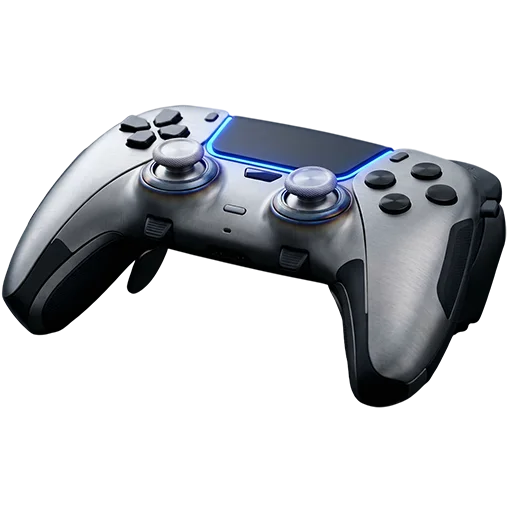
BC-250 PS Remote Play
BC-250 PS Remote Play connects the AMD BC-250 to a PS4 or PS5 on your network. It shows the console's picture and plays its sound in a window on the board. You play with the controllers connected to the board.
The app finds the consoles, wakes them from rest mode and registers the board with them. Then it starts a session and its stream. The consoles' own name for this is Remote Play, and it has to be switched on there.
The app does not change how the board runs. It talks to a console, or to PSN for your account ID, only when you press a button.
What you need
- Remote Play on the console: Settings > System > Remote Play > Enable Remote Play.
- To wake it from rest mode: on a PS5, go to Settings > System > Power Saving > Features Available in Rest Mode. Switch on Stay Connected to the Internet and Enable Turning On PS5 from Network. A PS4 has the same two switches under Settings > Power Saving Settings > Set Features Available in Rest Mode.
- The same network: the board and the console in one local network. Remote Play over the internet is not part of this app.
- Your PSN account ID: the number of your PlayStation Network account, not your online name. PlayStation does not
show it anywhere. Find my account ID… reads it through the PlayStation sign-in, as described below. The app also
takes the number itself (for example
4782394583276428394). It takes the 12-character code that ends with=too, as other Remote Play apps show it. The ID is the same for every console you register with this account. - A controller on the board: connected by USB cable or paired over Bluetooth with the board, not with the console. A DualShock 4 or DualSense works best. Any controller the system knows will do, such as an XBOX controller or a Steam Deck's controls. The app reads them with SDL3, which Bazzite includes. A controller that is paired with the console connects to the console itself when you press its PS button. The console then ends Remote Play. To pair a DualShock 4 with the board, hold Share and PS until the light bar flashes. It then no longer connects to the console until you plug it into the console with a USB cable. A cable to the board needs no pairing.
Using it
The boxes at the top show four things:
- how many consoles answered the last search
- how many consoles the board is registered with
- how the last session went, under Last session
- the selected registered console's model and system software, under Console type
Console type reads PS4 Pro · 14.00, for example. It shows the exact model once a session has run. A PS5 does not report its system software this way, so for a PS5 the box shows the model only. Hold the mouse over the box for more:
- the console's state, as the last search found it
- what runs on it, with the game's name and title ID, as the last search found it
- its Remote Play version
- the last stream's network test
The window then has four numbered steps, each with its buttons on the right:
- 1 Find the console
- 2 Register the board with it
- 3 Console, for the selected console's login passcode and for removing it
- 4 Game Mode
Below them are two lists, Consoles on the network and Registered consoles. Under those are the buttons for the selected console, with Stream on the right.
Settings…, at the top right, has the app's own settings. Privacy explains Show personal details. When it does not work explains Steam comes to the front on the PS button.
1 Find:
- Search network: asks every PS4 and PS5 on the network to answer. Each one is listed under Consoles on the network with its name, model, address, state and system software. The list also says whether the board is registered with it. The state is On or Rest mode. A PS4 reports its system software, 14.00 for example. A PS5 reports a code instead.
- Search address: asks one address. Type the address in the field, then press the button or Enter. Use it when the search finds nothing, for example on a network that does not pass broadcasts. Some mesh systems, a guest network and a VPN are such networks. The app remembers the address.
Find my account ID… (step 2) reads your account ID:
- Press Open the PlayStation sign-in. Your browser opens the PlayStation sign-in page. Sign in with the PSN account you use on the console. Copy the link is for a browser on another device.
- The sign-in then shows a page that only says "redirect". Copy that page's address from the browser's address bar. The app sees it on the clipboard and takes it by itself. Pasting it in the dialog and pressing Get account ID works too.
Signing in is PlayStation's own page. It may offer a QR code to scan with the PlayStation App. If that app turns the sign-in down, choose another way to sign in. Entering the code shown under the QR code in the PlayStation App works. So does your email address and password.
While the dialog is open, the app looks at the clipboard only for that address. It ignores anything else, and what was on the clipboard before. The sign-in stays in your own browser, so the app never sees your password. The app sends the code in that address to PSN once, reads your account ID and fills it in. It keeps only the account ID, nothing of the sign-in. The code works for a few minutes and only once. If PSN refuses it, sign in again.
2 Register:
- On a PS5, open Settings > System > Remote Play > Link Device. On a PS4, open Settings > Remote Play Connection Settings > Add Device. The console shows an 8-digit PIN for a few minutes.
- In the app, select the console under Consoles on the network, enter your account ID and the PIN, and press Register.
The console hands the board its keys. The console then appears under Registered consoles, with its name, model, address and Remote Play version. The list also says whether a login passcode is set. Click it to select the console. The buttons of steps 3 and 4 and the ones under the lists stay grayed out until one is selected. Then they act on it. A double click on it starts Stream. The log at the bottom reports a wrong PIN or a wrong account ID.
The buttons for the selected console are under the lists, and in steps 3 and 4:
- Wake: turns the console on from rest mode. It takes about 20 seconds. A search then shows it as On.
- Test session: starts a Remote Play session, keeps it for 3 seconds and closes it. When it works, the board's registration and the connection to the console are in order. The log shows each step.
-
Test stream: starts a session, runs a short network test, then the stream for 5 seconds, and closes it all. It needs the app's native core, see Install and remove.
The network test measures the round trip and the largest packets that pass each way. The stream asks for those. When the network test fails, the stream still runs, with safe values.
The board asks for what the console's Stream settings… say. By default, that is 1080p at 60 frames per second from a PS5 and a PS4 Pro, and 720p from a PS4. All of it is in H.264, which the board decodes faster than HEVC.
When it works, the log shows the network test's results and the resolutions the console offers. The message says how many frames and sound packets arrived.
The console sends spare packets along. Frames with a few packets lost are rebuilt from them. The message counts those and the frames lost.
When a frame cannot be rebuilt, the board asks the console for a fresh key frame, a picture that needs no earlier one. It leaves out the frames until the key frame comes. It also leaves out any frame whose earlier frame was lost. So the picture freezes for a moment instead of smearing. The message counts those too.
The frames are decoded but not shown. The GPU decodes them where it has a video decoder (VA-API), else the processor does. The BC-250 has none, so on the board it is always the processor. The log names which one, and how long a frame takes. - Stream: the same start, then the console's picture in a window of its own, until you close it.
F11 or a double click switches to full screen, Escape back. The mouse pointer hides over the picture after 2 seconds without moving. It comes back when you move the mouse. The line under the picture shows its size and how many pictures per second it shows.
The sound plays on the board's default audio output, for example the TV over HDMI. M mutes it. The desktop's own mute works too. Use the speaker on the stream's entry in the task bar, or the app in the volume control.
The controllers on the board play. That covers the buttons with the PS button, the sticks, L2 and R2, and the touchpad with its click. The app picks up controllers connected during the stream within a second. The log names each one. Several controllers act as one. Without a controller, the console sees one lying still with nothing pressed.
When Steam comes to the front on the PS button, switch that off with Steam comes to the front on the PS button in Settings…. See When it does not work.
The motion sensors play too, on a controller that has them, a DualShock 4 or DualSense. Games that steer or aim by tilting the controller see the tilt. The other way, the controllers rumble when the game makes them. The light bar takes the color the console gives it. Both need a controller with motors and a light bar. A DualSense's adaptive triggers do not work yet.
Closing the window ends the stream. The log then has the same counts as Test stream, and how many controller packets went out. - Stream settings…: how the selected console streams, from its next stream on. That holds for the Game Mode shortcut's stream too. Each console keeps its own. - Resolution: Automatic asks for 1080p from a PS5 or a PS4 Pro and 720p from a PS4. You can also choose 360p, 540p, 720p or 1080p. Lower is lighter for the network and the board. A PS4 that is not a Pro streams at most 720p. - Frame rate: 60 or 30 frames per second. - Bitrate: Automatic or your own, 1 to 50 Mbit/s. Automatic is 2, 6, 10 or 15 Mbit/s by resolution. More is sharper in busy scenes and needs a better network. On Wi-Fi less is safer. - Picture: Fit shows the whole picture with black bars where the screen's shape differs. Stretch fills the screen and distorts the picture. Fill fills the screen and cuts off the picture's edges. The console always sends 16:9. - Audio delay: plays the sound later, up to 500 ms. It is for a TV or audio system that shows the picture later than it plays the sound. - Low latency: uses a shorter sound buffer and the decoder's low-delay mode. That gives a little less delay, with more risk of short gaps in the sound on a busy network or board.
Restore Defaults puts back the automatic settings. - Controller test…: every button, stick, trigger and the touchpad of the controllers on the board, live, and the motion sensors.
The window checks each button once you have pressed it. A stick drifts when it does not come back inside the small circle after you let go. Rumble left, Rumble right and Light bar try the motors and the light. The line above them says whether the app sent the rumble. If it was sent, and you feel nothing, try another controller. When that one rumbles, the first one's motor is faulty. A button or stick that does nothing here is the controller's fault, not the app's.
The window names the model by the ID the controller gives:
- a DualShock 4 v1 (CUH-ZCT1)
- a DualShock 4 v2 (CUH-ZCT2)
- a DualSense
- a DualSense Edge
For a Sony DualShock 4 or DualSense it also shows whether the controller is genuine or fake. It reads Genuine DS4v1, Genuine DS4v2 or Fake DS4, for example. The verdict comes from the controller's firmware information, its build date and versions. It also comes from the calibration of its motion sensors, which fake controllers get wrong. A controller whose answers do not match is shown as fake. - History…: the games played through the app, per console, the newest first. Each has the time played and when it was last played, and the total is below. During a stream the app asks the console every 30 seconds what it runs. It adds the time to that game. Time on the home screen is not counted. Streams from the Game Mode shortcut count too. Play on the console itself does not. Clear history forgets it all. - Add to Game Mode (step 4) makes a Steam shortcut for the selected console, so you can play it from Bazzite's Game Mode like a game. The shortcut is in the library under Non-Steam. Its artwork is drawn from the app's icon, with the console's name and model on it. Starting it wakes the console when it is in rest mode and streams it full screen. Exit game in Steam's menu ends it. Steam has to close for the change. The app asks, closes it and starts it again. After a change of the console's name, press Update in Game Mode. The shortcut runs
~/.local/bin/bc250-console-link, so it needs the app installed through the portal. From a terminal,bc250-console-link --stream <console>does the same.<console>is the console's name, host ID or address. - Rest mode: puts the console in rest mode, through a short session. - Login passcode… (step 3) is for a PSN account with a 4-digit login passcode on the console. The console then asks for it at the start of a session. Enter it here once. - Remove (step 3) forgets the console's keys on the board. When the console has a Game Mode shortcut, the app offers to remove it from Steam too. Steam closes for it and starts again. In Game Mode itself, remove it in Desktop Mode or in Steam.A PS5 lists the board under Link Device. Remove it there too to undo the registration completely. A PS4 has no such list. It keeps a history of the connections under Settings > Remote Play Connection Settings > Connection History. An entry has the date, the account, nearby or over the internet, and the device, which shows as PC. The OPTIONS button there clears all entries at once.
When a console gets another address from the router, the next search finds it, and the app updates the address of the registered console.
Wi-Fi or cable
The stream does not need a cable. This was measured on 17-10-2026 with the app's version 1.1.1, on a BC-250 and a PS4 Pro on the same home network:
- ten minutes of the same game, Lumines Remastered, in intensive play
- 1080p, 60 frames per second and 15 Mbit/s asked for
- once over Ethernet and once over a USB Wi-Fi 6 stick
- the stick an AIC8800D80 on 5 GHz, 80 MHz, with a strong signal of -44 dBm
- the controller on Bluetooth with the board both times
| Cable | Wi-Fi | |
|---|---|---|
| Length | 634 s | 613 s |
| Video received | 10.5 Mbit/s, 37973 frames | 10.7 Mbit/s, 36685 frames |
| Frames lost beyond repair | 0 | 3, in one moment |
| Frames rebuilt with FEC | 0 | 1 |
| Key frames asked for | 0 | 3 |
| Longest gap between packets per second, median | 21 ms | 21 ms |
| Same, 95th percentile | 46 ms | 49 ms |
| Same, worst second | 73 ms | 181 ms |
| Sound lost | 0 of 63597 frames | 0 of 61480 frames |
| Silence from an empty sound buffer | 20 ms in total | 50 ms in total |
| Window late, worst | 6 ms | 4 ms |
| Decoding per 1080p frame | 7.0 ms | 7.0 ms |
| Controller, longest pause between reads | 6 ms | 6 ms |
| CPU, all cores | 7.2 % | 7.1 % |
On a good Wi-Fi link the stream is the cable's equal. The picture, the sound, the controller timing and the load on the board are the same. The one difference in ten minutes was a single Wi-Fi hiccup. It was two pauses of about 180 ms two seconds apart, with three frames lost beyond repair. The recovery asked the console for a key frame and held the last good picture until it came. That took about a quarter of a second and felt as a tiny lag, with no smearing. The cable had no such moment. A weaker or busier Wi-Fi brings more of these, for example on 2.4 GHz, far from the router or with many networks around. The statistics file of each stream shows them, see When it does not work.
Where it keeps what
~/.config/bc250-console-link/consoles.json: the registered consoles, their keys and their stream settings. Anyone with these keys can start a session with your account on the console, so only you can read the file.~/.config/bc250-console-link/bc250-console-link.ini: your account ID, the last address you searched and the window size. The account ID only identifies the account. It gives no access to it.~/.config/bc250-console-link/history.json: the games played through the app and their time (History…). Which games you played when is personal, so only you can read the file. Clear history removes it.~/.local/state/bc250-console-link/streams/: a statistics file for each stream, one line per second. The app keeps the newest 20. They hold no account details, and the console's address only masked. When it does not work says what a line shows.
Privacy
Your PSN account ID, your PSN online ID and the consoles' addresses are personal details. They identify you and your
home network. The window masks them. The account ID shows only its last four characters, an address only its last part
(•••.•••.•••.20), the online ID nothing at all. That holds for the fields, the tables and the log.
Show personal details in Settings… shows them in full until you switch it off again, for example to type or correct the account ID. The app starts with them masked every time. Whatever you copy from the log is masked, even while the window shows the details in full. So a log you send with a question keeps them to yourself. The consoles' names are not masked, for example PS4-728 or Living room PS5. Check them before you share a log if you gave a console your own name.
What the app sends, and to whom:
- To your consoles, on your own network: the account ID once, when you register. After that it sends the keys from registration, to start a session, and the stream itself. The stream carries your controller's input and nothing else. During a stream the app also asks the console what it runs, for the history. That answer stays on the board.
- To PlayStation (PSN), only with Find my account ID: the one-time code from the sign-in, once, to read your account ID and online ID. The sign-in itself happens in your browser. The app never sees your password.
- Nobody else. The app has no statistics, no crash reports and no connection to anything but your consoles and, on that one button, PSN.
Where it keeps what lists what the app keeps. It does not keep the online ID. Add to Game Mode writes the console's name into Steam's list of non-Steam games on the board. Nothing of it leaves the board.
When it does not work
- Search finds nothing: check that Remote Play is on, and that the console is on or in rest mode with the two rest-mode switches on. Try Search address with the console's address. The console shows it under Settings > Network > Connection Status. The console answers on UDP port 9303 to 9319 of the board. Bazzite's firewall lets these through by default. A stricter firewall zone may not.
- Registration: no answer: the PIN screen must be open on the console while you register. It is Link Device on a PS5 and Add Device on a PS4. The PIN is only valid for a few minutes.
- The console was switched off completely: Wake and the tests only reach a console that is on or in rest mode. For the board to reach it in rest mode, its rest-mode settings need two switches on. They are Stay Connected to the Internet and turning it on from the network, see What you need.
- Remote Play is already in use: another device has a session with the console. Close it there.
- The console asks for the login passcode: enter it with Login passcode….
- Test stream: no answer on the stream port: the stream uses UDP port 9296 of the console, the network test port
- Test session working but Test stream not points to a firewall or router between the two that blocks them.
- Test stream: the native core is not installed: install the app again through the portal (see below).
- The controller does nothing in the stream: try it in Controller test… first. A button that does nothing there is the controller's fault. The log names each controller it found. When it names none, check that the controller is connected to the board and not to the console. Its light bar is on, and it has a cable or a Bluetooth pairing with the board. When the log says SDL3 is not installed, install the system's SDL3 package. On Bazzite it is always there.
- In Game Mode the controller has no touchpad or motion, or acts twice: Steam gives a game it starts a virtual controller in place of the real one. The app reads the real one and leaves Steam's out while a real one is there. The log names the controllers it uses.
- The PS button opens Steam's menu in Game Mode: there Steam keeps the PS button for itself, whatever its settings say. The console does not get it.
- The PS button brings up Steam: Steam reads the controllers too and comes to the front on the PS button. Switch off Steam comes to the front on the PS button in Settings…. That changes Steam's own setting Guide Button Focus Steam, under Settings > Controller > Show Advanced Settings. The app closes Steam for the change, after asking, and starts it again in the background. In Game Mode Steam always keeps the PS button for its menu.
-
The sound stutters, or the picture or the controller lags: every stream writes a statistics file, one line per second, in
~/.local/state/bc250-console-link/streams/. The log names it when you start from the app. The newest file is the last stream. Each line shows:- the frames received and how evenly they came
- the time to decode a frame
- the pictures shown and skipped, and how old they were when drawn
- how late the window ran
- gaps in the sound, silence because its buffer ran empty
- the controller's reads
- how busy the processor and the app's threads were
- whether the board waited on the disk, swapping when memory runs short
Send the file with a question. It shows which part falls behind, and when. - The stream ends with "Server shutting down" after you press PS: the controller most likely connected to the console, not to the board. Connect it to the board (see What you need).
Install and remove
The portal installs it, under Gaming. By hand, from the extracted release folder:
./install.sh                         # install or update
./install.sh --no-desktop-shortcut   # app menu entry only, no icon on the Desktop
./install.sh --uninstall             # remove the app; keeps its settings and the registered consoles
./install.sh --uninstall --purge     # also remove its settings and the registered consoles' keys
The app has its own Python environment in ~/.local/share/bc250-console-link/venv, with PyQt6 and cryptography.
The stream runs on the app's native core, written in Rust, with FFmpeg inside for the video. A release brings it ready
to install, so install.sh needs nothing else for it.
From a clone of the suite, install.sh builds the native core when Rust is installed. rustup
installs Rust in your home folder. The build takes a minute or two the first time. The video decoder needs FFmpeg built
first, once. native/ffmpeg/build.sh downloads FFmpeg's sources, checks them and builds it into
~/.cache/bc250-console-link. With nasm installed, decoding is about twice as fast. Without the native core,
everything but Test stream and Stream works. Without the decoder, Test stream does not decode the frames.
Disclaimer
The BC250 Bazzite Suite is an independent community project, not affiliated with or endorsed by AMD, ASRock, the Bazzite / Universal Blue project, Sony, Microsoft, Valve, or the makers of the emulators and the other programs the apps work with. BC-250 is AMD's product name and Bazzite the Universal Blue project's. PlayStation, PS4, PS5, PS3, PS2, PSP, PS Vita, PSN, DualSense and Remote Play are Sony's; XBOX, XBOX 360, XBOX Cloud Gaming, Game Pass and Windows are Microsoft's; Steam, Steam Deck and Big Picture are Valve's; the names of the emulators (shadPS4, RPCS3, PPSSPP, PCSX2, Vita3K, Xenia) and of HelixSR and DirectMesh belong to their owners. The suite uses them only to say what its apps work with.
License
AGPL-3.0. The protocol code is ported from chiaki-ng, which is AGPL-3.0-only
with an OpenSSL exception. Those files keep that license. The app's own files are AGPL-3.0-or-later. The files marked
SPDX-License-Identifier: AGPL-3.0-only are modified from chiaki-ng's code, ported to Python and Rust. The code and its
tests call chiaki-ng "the reference". The native core links FFmpeg (LGPL-2.1-or-later), built from
its own sources by native/ffmpeg/build.sh with only its LGPL parts.